Integrations answer two questions: what does the access point think of this client, and can I get an answer without opening the app?
What you need
- Ruckus One: a tenant and an application token. iPhone and Android.
- AP SSH: a Ruckus AP that the phone can reach. From the access point list, the app fetches the AP's password from Ruckus One. On Android you can also enter an address and credentials by hand.
- Wi-Fi Comparison: iPhone or iPad only, with Ruckus One or AP SSH connected.
- Siri and Shortcuts: iPhone or iPad. The free-text assistant needs Apple Intelligence.
- Android assistants: Android 16 or later, and an assistant that supports Android AppFunctions.
- Oscium WiPry spectrum analyzers are covered on Spectrum.
How to connect Ruckus One
- On iPhone, open More › Settings, then under Integrations tap Cloud Integrations › Ruckus One. On Android, open More › Integrations › Ruckus One.
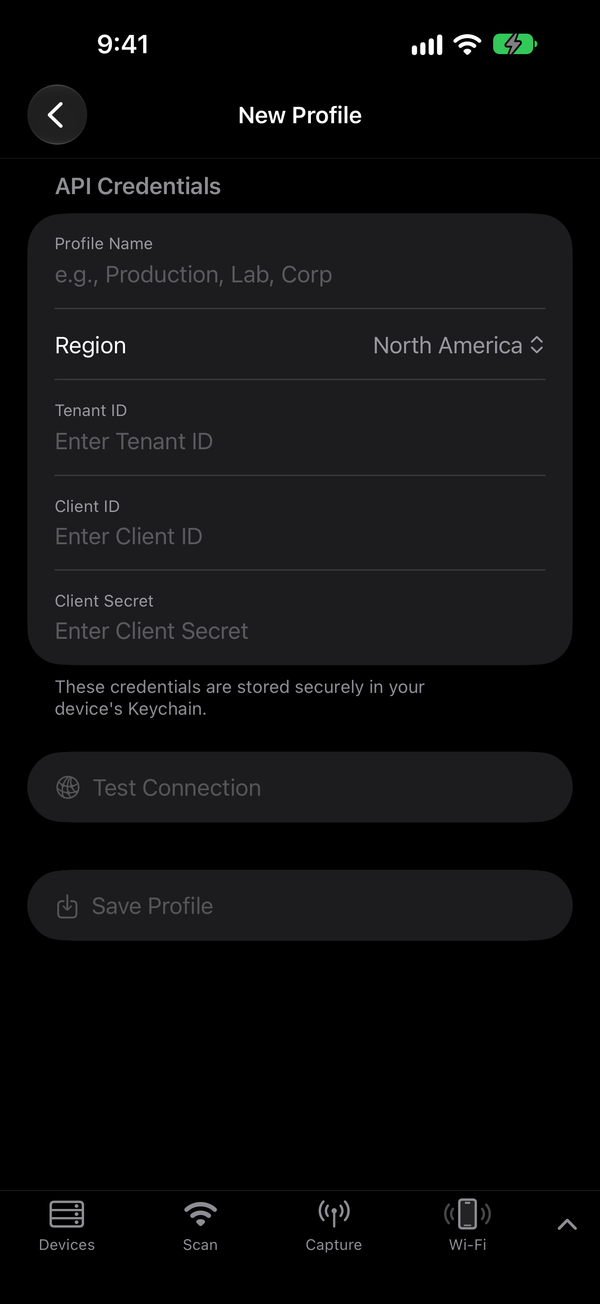
- Tap Add Profile (iPhone) or the + button (Android).
- Enter a Profile Name and choose the Region. iPhone lists North America, Europe and Asia Pacific; Android lists US, EU and Asia.
- Enter the Tenant ID, Client ID and Client Secret. On iPhone, How to Get API Credentials on the Ruckus One screen walks through creating the token; it suggests Read-Only scope.
- Tap Test Connection. You should see Connection successful.
- Tap Save Profile (iPhone) or Save (Android). The profile appears in the list with its on/off switch turned on.
Each profile is one tenant; enabled profiles are searched together. A profile brings in:
- AP-side metrics for this phone (RSSI, SNR, connection time), found by the BSSID and the phone's IP address.
- An access point list under Devices › Access Points, grouped by account and venue.
- AP-side signal for clients. On Android, a client's details show the Ruckus One RSSI beside other readings.
On iPhone, AP lookups are off until you switch them on: on the Wi-Fi tab, under AP Details, turn on Follow this phone with Ruckus. It lasts for the session.
How to compare the phone's view with the AP's view
iPhone and iPad only.
- Open the Wi-Fi tab and tap Start to stream the phone's own Wi-Fi details (see below).
- Open More › Wi-Fi Comparison, or on the Wi-Fi tab open the menu and tap Compare with AP.
- On Signal Comparison, set AP Data Source to API (Ruckus One) or SSH (a live AP session). The app switches to whichever is available if only one is.
- Read the sections side by side: Signal Strength (RSSI), Signal-to-Noise Ratio, Noise Floor, Channel & Band, Data Rates & Traffic and Signal History.
Warning: Channel mismatch - data may be stale means the two sides disagree on the channel. Wait for a fresh sample.
How to open a Ruckus AP over SSH
- Connect Ruckus One first. Open Devices and expand Access Points to your venue.
- Tap an AP. The app fetches its current password from Ruckus One and connects. If the AP is offline, the app says so.
- When it connects, the AP is added to your devices, so you can select it like a sensor.
- On iPhone, AP Details opens: hardware, radios, clients, WLANs, uplink, LLDP neighbors and the AP log. Under Packet Capture, pick a radio, choose a capture mode, and tap Start Capture. The AP captures on the channel it is already serving and keeps serving its clients. Tap Stop Capture to finish.
On Android you can also connect by hand: More › Integrations › Ruckus AP SSH. Enter the AP IP Address, SSH Port, Username and Password, then tap Connect.
How to use Siri, Shortcuts and the Action button
iPhone and iPad. These actions appear in the Shortcuts app under WLAN Commander:
| Action | What it does |
|---|---|
| Open Tool | Opens a tool, such as the Scanner or Devices. |
| Summarize Wi-Fi Scan | Describes the active sensor's scan: crowded channels, strongest networks, security concerns. |
| Get Channel Recommendation | A channel per band, with confidence and caveats. |
| Sensor Status | Which sensors are connected and scanning. |
| Connect to Sensor | Connects to one of your saved sensors. |
| Ask WLAN Commander | Answers a question about your scan, sensors or a feature. |
| Open Assistant | Opens the in-app assistant. |
- Say a phrase to Siri, for example "Summarize the scan in WLAN Commander", "Best channel in WLAN Commander", "WLAN Commander sensor status" or "Open Scanner in WLAN Commander".
- To use the Action button, open the iPhone's Settings › Action Button, choose Shortcut, and pick a WLAN Commander action.
- To ask in the app, run Open Assistant. Tap the settings button to choose Use Apple Private Cloud Compute and Share network names with the cloud. Both are off by default. With both off, nothing leaves the phone.
There is no hands-free scan start or stop. "Start a scan" opens the Scanner.
How to stream the iPhone's own Wi-Fi details
A Shortcut reads the phone's RSSI, noise and rates and sends them to the app.
- Open the Wi-Fi tab. If the shortcut is not installed, tap Install and add WLAN Commander WiFi Stream in the Shortcuts app.
- Tap Start. The Wi-Fi Details header shows LIVE while samples arrive.
- Tap Stop when done. To install the shortcut again, open the menu and tap Reinstall Shortcut.
How to ask an Android assistant
Android 16 or later. WLAN Commander offers read-only tools to assistants that support Android AppFunctions, such as Gemini where it offers them. Whether your assistant uses them is up to the assistant.
It can report sensor status, summarize the scan, give the channel recommendation, look up a network, explain a feature and open a screen. Ask in your own words, for example:
- "Are my WLAN Commander sensors connected?"
- "Summarize the 5 GHz scan in WLAN Commander."
- "Does WLAN Commander see a network called Lab?"
Unlike iPhone, Android cannot connect a sensor this way; it opens Devices instead. There is no in-app assistant on Android.
Tips
- An iPhone uses a private MAC address per network. Ruckus One shows that address, not the hardware address.
- Answers about your scan or sensors need the app running, with a sensor connected for scan data. If the app is not running, the answer says so.
- The assistant is never given emergency-location data, on-device or in the cloud.
If it doesn't work
| What you see | What to do |
|---|---|
| Ruckus One not configured | Add and enable a profile in Settings › Cloud Integrations › Ruckus One. |
| Device not found in Ruckus One | Check the network is Ruckus-managed and the right profile is enabled. New clients take a moment to appear. |
| Ruckus One reports this AP as offline | The AP will not answer SSH. Pick another AP. |
| iOS Wi-Fi Stream not active | Start the stream on the Wi-Fi tab. |
| Shortcuts opened but sent nothing back | Install WLAN Commander WiFi Stream, then tap Start again. |
| The assistant says Apple Intelligence is off | Turn it on in Settings › Apple Intelligence & Siri, or turn on cloud answers in the assistant's settings. |
Related
Scan & discover · Capture & analyze · Spectrum · Connecting sensors