Where: mobile app and supported Linux capture tools. The device website has managed Packet capture, Kismet and Profiler controls; their output and workflows differ from the app.
Capture records raw 802.11 frames in monitor mode, including management and control frames a normal Wi-Fi adapter never shows. The result is a pcapng you can open in Wireshark or hand to PCAPAI with the survey and capture context attached.
What you need
- A connected monitor-capable sensor. Packet capture runs on the sensor; see hardware compatibility for which radios, bands and widths each one records.
- iPhone or Android. Differences:
- iPhone has a Capture Width picker. Android currently records at 20 MHz and shows the width as a note ("Width 20 MHz · up to … MHz").
- iPhone has Share for PCAPAI on the Capture screen. On Android, make the package from Files › Capture Properties.
- For Share over Wi-Fi: a computer running PCAPAI on the same Wi-Fi network.
How to run a capture
- Connect the sensor in Devices (how).
- Tap Capture.
- Open the settings:
- On iPhone, tap Capture Settings. The Capture Settings sheet opens.
- On Android, the settings are on the Capture screen above the start button.
- Choose the radio under Interface. With several radios, each starts on Auto and the device splits the channels between them; check the Plan.
- Choose the channel:
- On iPhone, set Mode to Single Channel and pick the band, channel and width, or choose Channel Hopping and select bands and channels.
- On Android, turn Channel Hop off and enter the Channel, or turn it on and choose bands.
- On iPhone, set Capture Width. In hopping mode the width applies to every channel in the hop; channels that cannot use it fall back to 20 MHz.
- Optional: under PCAPAI intelligence, turn on Pre-capture environment scan and choose Survey passes (1 pass or 2 passes). This is the Environment Survey.
- On iPhone, optional: under Capture Limits, turn on Headers Only (128 bytes) to keep headers and information elements but drop payloads. Under Storage, Stream to Device (recommended) saves the file on the phone; Save on Remote keeps it on the sensor to download later.
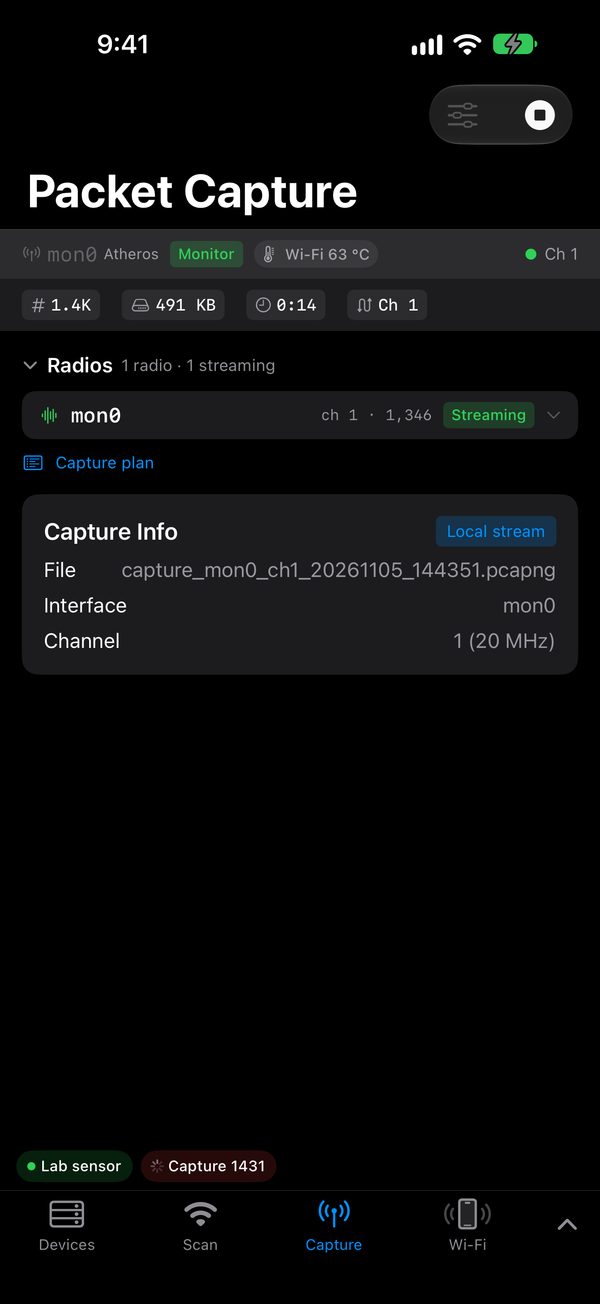
- On iPhone, tap Done, then Start. On Android, tap Start Capture (or Survey + Start Capture when the survey is on).
- If the survey is on, the screen shows Environment Survey while it hops every channel, then Starting Capture. The survey finishes after every channel in its list, not after a fixed time.
- Check that packet and byte counts rise.
- Tap Stop (Android: Stop Capture). Wait for the file to finish saving before you disconnect.
After a stop, the capture's actions appear: Capture Properties, Share, Share over Wi-Fi and, on iPhone, Files and Share for PCAPAI.
How to add Capture Properties
Venue, method and a comment tell PCAPAI what it is looking at; they are saved in the capture's .json sidecar.
- After you stop, tap Capture Properties. You can also open it later from Files.
- Set Venue profile: Generic, Home, Office, Hotel, Stadium, Warehouse or Airport.
- Set Capture method, for example OTA monitor or AP-based.
- Type a Capture comment. On Android you can also set Intent and Tags (comma separated).
- Tap Save Annotations (Android: Save). On iPhone the footer confirms "Saved to" the sidecar name.
How to send a capture to PCAPAI
Share for PCAPAI (.wcpack)
A .wcpack bundles the capture's sidecar files: context, environment survey, channel statistics and phone telemetry. The pcapng itself is not inside it. Send both.
- Set venue and method in Capture Properties first.
- On iPhone, tap Share for PCAPAI on the Capture screen (or Share for PCAPAI (.wcpack) in Capture Properties). On Android, open Files › the capture › Capture Properties and tap Create package.
- Choose where to send it in the share sheet.
- Send the pcapng too, with Share (on iPhone, Share pcapng in Capture Properties).
Share over Wi-Fi › Send to PCAPAI
This sends the capture, its sidecars and its package straight to PCAPAI on your local network, with a PIN check.
- Put the phone and the computer on the same Wi-Fi network.
- In PCAPAI, open File Transfers › Receive from WLAN Commander. It shows a QR code.
- In WLAN Commander, after a stop, tap Share over Wi-Fi. On iPhone the sheet heading is Send to PCAPAI.
- Tap Scan PCAPAI QR code and scan PCAPAI's code. Use this in-app scanner, not the Camera app. You can paste the link into Paste laptop pairing link instead.
- Compare the PIN on the phone with the one in PCAPAI.
- If they match, tap PIN matches — send these files.
- Accept the file list in PCAPAI. The phone shows "Accepted by PCAPAI" and then the transfer status.
- Tap Done.
Show phone QR instead (legacy) reverses the flow: the phone shows a code and PCAPAI scans it.
For moving, renaming and exporting files afterwards, see files and exports.
Tips
- Decide the question first. One AP, a client transition, two channels, or a broad survey each need a different plan.
- Single channel or hopping. Stay on one channel when continuous visibility matters, such as a roam or a handshake. Hopping gives breadth but leaves gaps on every channel it is not on.
- Find the busy channel first. Under Recommended Channels (iPhone) the app ranks channels by how much there is to capture. That rewards busy channels; it is not AP placement advice. Tap + to capture on that channel.
- Width is a radio limit, not a label. A card's Wi-Fi generation does not tell you its capture width. Check compatibility.
- ESP32-C5 is a different view. It captures 2.4 and 5 GHz at 20/40 MHz, with no 6 GHz and no encrypted data payloads for later decryption. Note the firmware the app detects; see ESP32-C5.
- Turn on the survey for PCAPAI. It is off by default. With it on, nearby APs and clients from every band go into the same pcapng, so PCAPAI can give channel-planning advice.
- Verify the file, not the timer. A running timer does not prove packets kept arriving; the NanoPi thermal campaign recorded output pausing while logging carried on.
- Merging is not synchronising. A pcapng can hold several interfaces, but independent radio clocks are not perfectly aligned.
If it doesn't work
| What you see | What to do |
|---|---|
| "Packet capture runs on a sensor over SSH. Connect one to begin." / "Connect to a device to start capture" | Connect a sensor in Devices. |
| "Capture will not start" in Capture Settings | Read the reason under Plan. Usually a radio is pinned to a band it cannot tune; pick another channel or radio. |
| "This radio requires Stream to Device." | The radio cannot save on the sensor. The capture is saved on the phone. |
| Counts do not rise | Try a single channel with a known AP. Check the right radio is selected. |
| "This capture has no context sidecar, so it cannot be packaged for PCAPAI." (Android), or iPhone shares only the pcapng | Packaging needs the capture's .json sidecar. Share the pcapng on its own. Captures saved with Save on Remote show no share actions until downloaded. |
| Share over Wi-Fi: "Connect this phone to the same Wi-Fi as PCAPAI." | Join the computer's network, then try again. |
| Share over Wi-Fi: "Create a new code and reopen Share over Wi-Fi." | The code expired or was used. Start a new receive in PCAPAI and scan again. |
Related
Scan & discover · Files and exports · Connecting sensors · Hardware compatibility · ESP32-C5 · PCAPAI