
Where: device detail in the app, and the Health page on the sensor's website. Telemetry and update controls differ by board and interface.
Check a sensor's condition before a long scan, capture or update. Then keep its image current and reach it remotely.
What you need
- A connected Linux sensor. iPhone, iPad and Android.
- Image updates from the app: a sensor running the unified image.
- Tailscale: a sensor whose image includes the Tailscale component.
How to read sensor health and temperatures
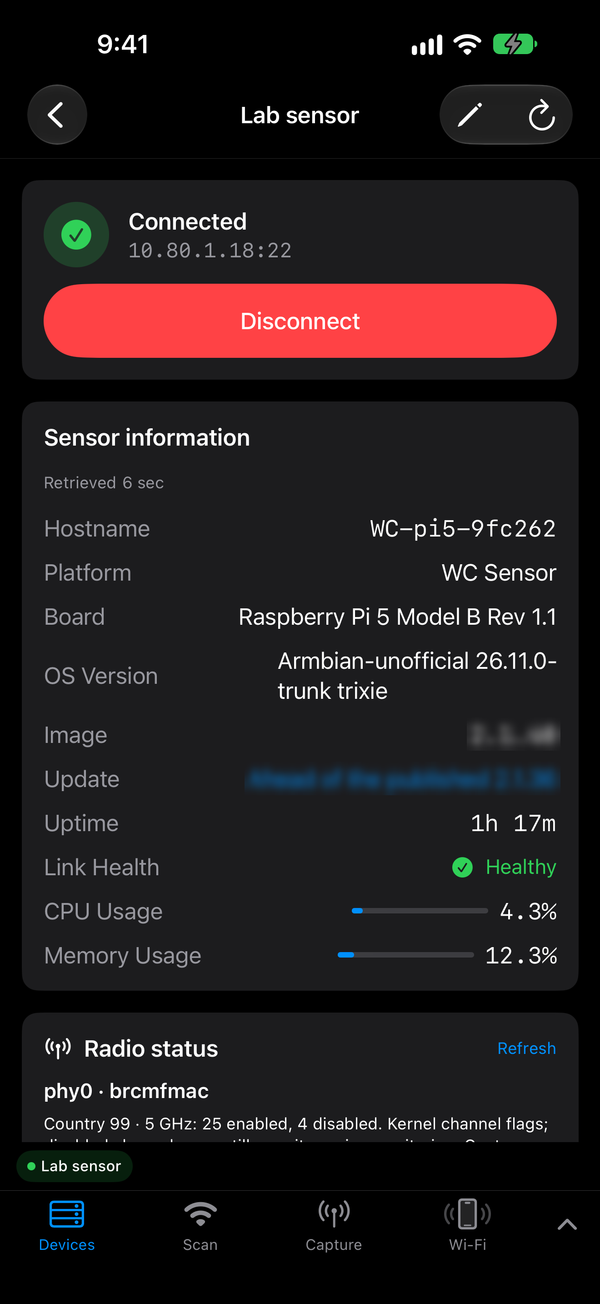
- In Devices, tap the sensor's row to open device detail. Connect if it is not connected.
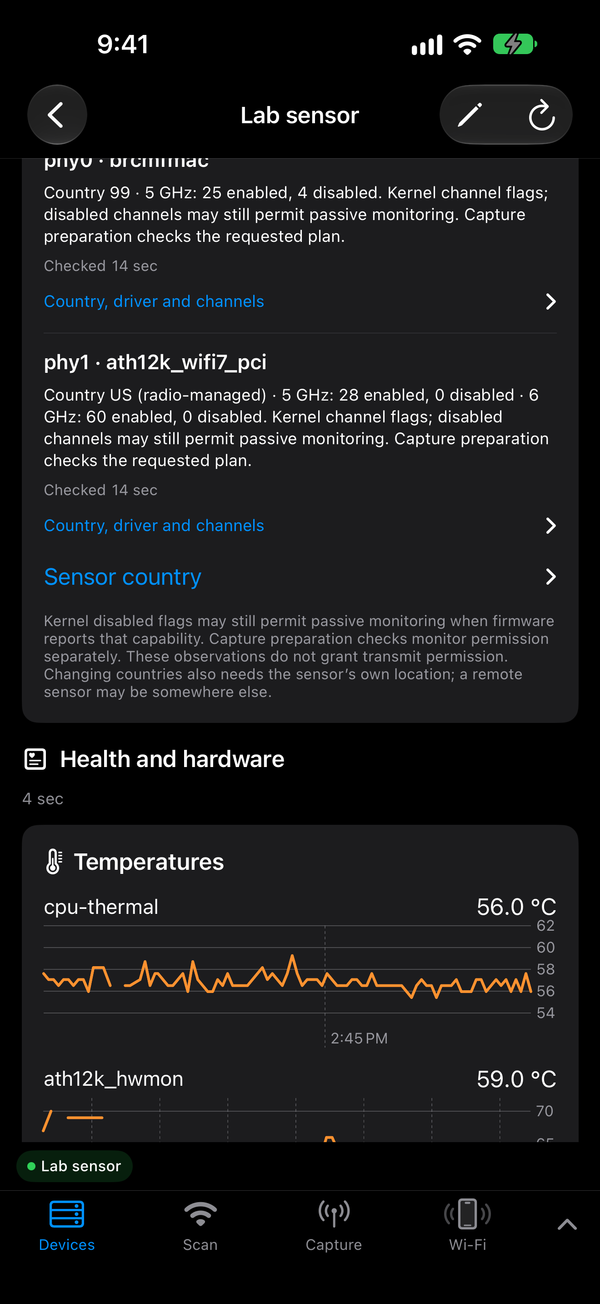
- Find the temperatures:
- On iPhone, scroll to Health and hardware. Without a connection it shows Last retrieved health and hardware.
- On Android, scroll to the Temperatures card.
- Under Temperatures, read each sensor in °C, with the recent history beside it. Elevated and Hot banners name the hottest part. Android states the limits: elevated at 75 °C (Wi-Fi) or 80 °C (CPU), and hot at 80 / 90 °C or any sensor alarm.
- Look for CPU throttled. On Android, also look for Transmit power reduced (step N of M), which means the Wi-Fi card is cutting its own power to stay cool.
- If the board reports a voltage alarm, a Power health card shows undervoltage events. On iPhone, Power and Hardware cards add USB power and board details.
- On iPhone, use Radio status › Refresh to read each radio's driver, firmware and country. Country, driver and channels lists the enabled, disabled and no-IR channels in 5 GHz and 6 GHz.
Readings are stale — showing last received values means you are looking at old data. Reconnect before you act on it. An unavailable temperature is not zero. A cleared undervoltage alarm does not erase an earlier event in the same boot. Qualcomm Wi-Fi temperature appears only while that radio is active.
How to update a unified sensor's image from the app
The phone downloads and checks the signed image, then copies it to the sensor. The sensor checks it again and stages it in its inactive system slot. Nothing installs until you tap Install. The sensor never installs an update on its own.
- Connect the sensor and open device detail.
- Find the Sensor image update card (iPhone) or Sensor image card (Android). On Android, if the card is hidden, tap Check for sensor image updates.
- Tap Check now. The card shows the installed and published versions, and Release notes when there are any.
- Tap Download. The phone downloads the image and its signature, then verifies them. On Android, an interrupted download offers Resume download.
- Tap Push to sensor. The sensor checks its free space, receives the image, verifies it and stages it. You can close the app while staging runs, as long as the sensor stays powered.
- Read Your apps and settings. If it says This update is on hold until each item below is resolved, choose Keep it or Update without it for each item.
- Install:
- On iPhone, tap Install staged image, then confirm Install and reboot.
- On Android, tap Install and reboot and confirm.
- Keep sensor power steady while it reboots. Then reconnect. The card should report the new version as installed.
Some updates first ask you to Prepare updater. That step installs updater support and does not reboot. Afterwards the card offers the firmware image. If an update requires an intermediate image version, read the release notes before you go on.
How to manage remote access with Tailscale
- Open the services screen:
- On iPhone, in device detail, go to Services › Manage in Installer, then expand Sensor services.
- On Android, in device detail, go to Sensor services › Manage services.
- On the Tailscale card, tap Connect. If the sensor needs to sign in, tap Open sign-in page and finish in the browser.
- Expand Settings to change the Control server, auth key, Hostname, routes, exit node, Tailscale SSH and Accept DNS. Then tap Save. To run your own control plane, enter a Headscale server URL.
- Use Disconnect to pause access. Use Sign out to end it; the sensor then has to sign in again.
If Tailscale was set up outside Commander, choose Keep managing it myself or Let Commander manage it. In the managed-by-you mode, the app only shows status and changes nothing.
Tips
- OTA or factory image? Use the signed OTA path above for an existing unified A/B installation; Data stays in place. Use the factory image for blank storage or to convert an older layout; it erases the target. Keep physical access during beta updates, because recovery in early boot can need a power cycle.
- Power during updates. If the phone powers the sensor over USB, keep enough charge for the whole update. Changing the power connection can reboot the sensor. Phone charging status does not confirm sensor power.
- What survives an update. Owner credentials, device certificates, display calibration and saved Bluetooth bonds persist across signed A/B updates. The 2.1.36 console also manages the touchscreen and Bluetooth input and ESP32-C5 USB firmware updates.
- Cooling. The image controls a Pi 5 fan on its dedicated FAN socket with temperature-based PWM. It does not measure RPM, so a requested speed does not prove the fan is turning. The Go needs a stable powered USB connection, and radio load can expose a weak cable or hub.
- EEPROM. A displayed EEPROM version is information, not a prompt to flash. Maintenance depends on the exact Pi/CM4 board. Don't assume a Pi 4 procedure applies to a custom Pro or Go carrier.
If it doesn't work
| What you see | What to do |
|---|---|
| No installable update is currently offered. | The sensor already runs the published image, or no update applies to it. Tap Check now later. |
| The sensor has insufficient free space. | Free space on the sensor, then push again. |
| The previous staging session ended. | Tap Push to sensor again to start a new staging job. |
| The version is unchanged after a reboot | Reconnect and tap Check now. If the sensor does not come back, power-cycle it; see installation and updates. |
| Status unavailable on the Tailscale card | Tap Try again. Check that the sensor is connected and no other device operation is running. |
Related
Downloads · Unified image setup and updates · Device website · Troubleshooting